
Test DPC
Screenshots
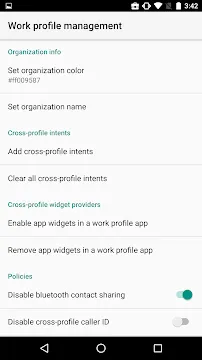
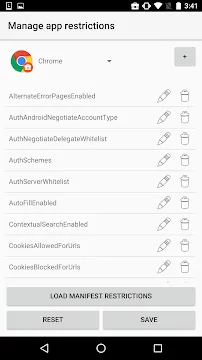
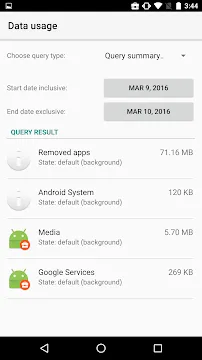
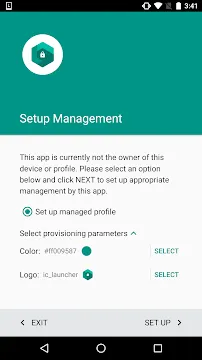
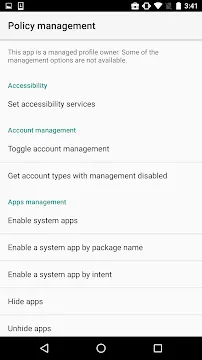
Test DPC helps developers test their apps in a managed environment. This tool acts as a sample device policy controller. Therefore, you can see how your app behaves under different security policies. Developers often need to simulate enterprise conditions. Consequently, they use this tool to create a managed profile. You can modify restrictions and monitor app responses easily.
This page offers a direct way to get the file. If you build enterprise apps, you need this tool. It allows you to test managed configurations. Furthermore, you can control device features during your tests. This tool simplifies the entire development process. As a result, you save time and fix bugs quickly.
First, you should understand the purpose of this tool. Google created it for testing purposes. It does not provide security for regular users. Instead, it simulates a corporate environment. For example, a company might restrict camera usage on work phones. This tool helps you test that exact scenario. Thus, you can ensure your app works perfectly for corporate clients.
In addition, the tool is completely free. You can use it on any compatible test device. Many people download it to explore enterprise features. However, its primary audience remains the development community. If you want to build robust corporate tools, you must test them thoroughly.
Finally, clean installation files protect your testing hardware. Our website offers secure file access for all users. You can download the latest package with confidence. This ensures your development environment remains safe. Now, let’s look at the operational details of this tool.
What is Test DPC and How Does It Work?
Test DPC operates as a tool to mimic enterprise settings. First, it sets up a work profile on your test device. This process separates personal data from work data. Consequently, you can test how apps handle data isolation. The tool allows you to enforce various administrative policies. For instance, you can block specific apps or disable Wi-Fi.
Next, the tool lets you test app permissions under strict conditions. Many enterprise environments block certain permissions by default. Therefore, your app must handle these restrictions without crashing. When you use this tool, you can toggle these permissions manually. This action shows you how your app reacts in real time.
Additionally, you can test device owner mode. This mode gives the tool full control over the entire device. It simulates a phone owned completely by a company. For example, you can prevent factory resets. You can also force specific security patches. This testing is crucial for enterprise deployment.
Furthermore, the tool hooks directly into the system’s deployment APIs. It acts as the bridge between your settings and the operating system. Consequently, it executes commands immediately. This allows developers to see the instant impact of policy changes. You do not need to wait for server syncing. Everything happens locally on the hardware.
Finally, understanding this workflow improves your development speed. You can identify potential security conflicts early. If your app requires a restricted feature, you will find out immediately. Then, you can implement a proper fallback solution. This ensures a seamless user experience later.
Key Features of Test DPC You Should Know
Test DPC includes a wide range of features for developers. First, it supports the creation of managed profiles. This feature helps you isolate apps for strict testing. Second, it allows you to manage runtime permissions. You can grant or revoke permissions instantly. Consequently, you see if your app requests permissions correctly.
Furthermore, you can configure managed configurations through the tool. Many corporate apps rely on these configurations for setup. For example, an app might need a specific server URL. This tool allows you to input that data easily. Then, you can verify if your app reads the data properly.
Another great feature is the ability to test password policies. You can set minimum password lengths. You can also require complex characters. Then, you can observe how the device handles these security rules. Here is a list of other useful features:
- Block screen capture features.
- Disable external storage access.
- Manage device certificates easily.
- Control cellular data usage.
- Restrict Bluetooth connections completely.
- Set up data usage limits.
- Manage VPN configurations directly.
- Hide specific system packages.
In addition to these options, you can test account management. Enterprise environments often restrict the types of accounts users can add. Therefore, you can block personal email accounts during your tests. This feature ensures your app complies with strict corporate data governance.
Finally, the tool allows you to test app suspension. Administrators can suspend apps remotely in real life. This tool simulates that suspension perfectly. Consequently, you can see how your app behaves when suddenly disabled. This helps prevent data loss for the user.
How to Set Up a Managed Profile Easily
Setting up a managed profile requires a few specific steps. First, you must download the file to your test device. Next, you open the tool to start the setup process. The tool will ask you to choose a setup mode. For most tests, you should select the managed profile option. This choice creates a secure work space.
Then, the tool guides you through the encryption process. Some devices require encryption before creating a work profile. Therefore, you must follow the on-screen prompts carefully. Once the process finishes, you will see a new tab. This tab displays your work apps separately.
- Open Test DPC:
- Launch the tool from your apps menu after successful installation.
- Choose Setup Mode:
- Select the managed profile option from the main setup screen.
- Agree to Terms:
- Accept the administrative privileges required by the tool to proceed.
- Verify Profile Creation:
- Look for the separate work tab on your device app drawer.
Next, you must provision the profile correctly. The tool automates most of this provisioning work. However, you must accept the terms presented on the screen. This step grants the tool the necessary administrative rights. Without these rights, it cannot enforce policies.
Finally, you can add your own app to this profile. This step allows you to begin your testing immediately. You can change settings in the tool at any time. Consequently, you can observe how your app adapts to new rules. This method ensures your app is ready for corporate users.
Remember to keep your test device connected to power during setup. The initial profile creation can consume significant battery life. If the device turns off, the profile might corrupt. Then, you would have to start the process again.
Why Developers Choose This Enterprise Testing Tool
Developers choose this tool because it offers absolute control over the testing environment. Normally, testing corporate policies requires a complex server setup. You would need an expensive mobile device management system. However, this tool eliminates that entire requirement. It runs directly on your device without a backend server.
Furthermore, the tool is open source. This means you can inspect the code to understand its functions. If you encounter an error, you can see exactly why it happened. Consequently, you gain a deeper understanding of enterprise frameworks. This knowledge helps you build better products.
In addition, the tool receives regular updates from creators. These updates ensure compatibility with the latest system versions. Therefore, you can test new enterprise features as soon as they arrive. This advantage keeps your apps ahead of the competition. Developers save money and time by using this free tool.
Another reason for its popularity is the clean interface. The layout presents options clearly without unnecessary clutter. Therefore, even beginners can navigate the settings easily. You do not need extensive training to use it. The straightforward design allows you to focus purely on your code.
Finally, it helps teams replicate bugs easily. If a client reports an issue, you can mimic their profile exactly. Then, your QA team can isolate the bug within minutes. This rapid replication speeds up patch releases. Consequently, your clients remain happy and secure.
Step-by-Step Guide to Download Test DPC Safely
Downloading the file from a reliable source is very important. Our website provides a clean and secure version of the file. First, click the download button on our main page. The download process will begin immediately. Next, you must enable unknown sources in your settings. This step allows you to install files outside the official store.
Then, locate the downloaded file in your file manager. Tap the file to initiate the installation process. The system will ask for your confirmation. Grant the necessary permissions to proceed with the installation. Once completed, you can open Test DPC right away.
To ensure a successful installation, follow these quick tips:
- Check your device storage space.
- Ensure your battery is above fifty percent.
- Disable temporary security scanners during installation.
- Restart your device if the file fails to open.
- Verify the file size before installation.
In addition, always ensure you download the latest version. Older versions may not support new operating system features. Therefore, our site constantly updates the file hosted here. You can bookmark this page for future updates. This practice keeps your testing tool up to date.
Finally, avoid downloading files from unverified forums. Those files might contain malicious code that compromises your device. Our platform scans every file before making it public. Consequently, you can download with absolute peace of mind. Your safety remains our top priority.
Important Tips for Testing Your Mobile Apps
Effective testing requires a clear and organized strategy. First, you should test your app under both setup modes. Test it as a profile owner first. Then, test it as a device owner. These two modes behave differently. Consequently, your app might react in unexpected ways.
Second, always log your errors during the testing phase. The tool provides clear feedback when a policy blocks an action. Therefore, you should match these blocks with your app logs. This comparison helps you find the exact lines of code that cause failures. Then, you can fix them easily.
Third, create a checklist of policies to test. Do not just toggle settings randomly. Instead, test specific scenarios systematically. For example, test data sharing restrictions on Monday. Then, test network configurations on Tuesday. This structured approach prevents you from missing critical bugs.
Finally, do not use your personal phone for these tests. The tool alters deep system settings. Sometimes, removing the tool requires a factory reset. Therefore, you should always use a dedicated test device. This practice protects your personal data from accidental loss.
Additionally, keep a clean backup of your test device. If a test locks you out, you can restore the system quickly. This habit saves hours of setup time over a long project. Experienced developers always maintain backups before deep system testing.
Conclusion
In conclusion, Test DPC remains an essential tool for creators of enterprise software. It provides a free and simple way to simulate corporate environments. Consequently, you can fix bugs before your clients find them. You do not need expensive servers to run these tests. Instead, you just install the file and begin working.
Furthermore, the tool empowers development teams to achieve high software quality. By simulating strict administrative rules, you prepare your app for any corporate scenario. This thorough preparation builds trust with your business clients. They will appreciate software that works without unexpected interruptions.
Download the file from our secure site today to improve your workflow. We ensure all our files are safe and free from malware. Start testing your apps under strict policies right now. As a result, you will provide a more stable product to your users.